Introducing Rendering Studio
Rendering Studio is the AI rendering workspace inside Studio Designer. Designers use Rendering Studio to turn a photo of a room and the products on their design board…
TL;DR: Rendering Studio is the AI rendering workspace inside Studio Designer. Designers use Rendering Studio to turn a photo of a room and the products on their design board into a realistic image of the finished space in seconds, so clients can see a design before anything is ordered. The workspace includes two modes (Scene for the whole room and Custom Piece for a single item), a History tab that saves every version, and @ products for pulling real catalog items into a render.
Key Takeaways
- Studio Designer firms create up to 20 custom Color Statuses that mirror their own process, from proposal through delivery.
- Multi-select filtering on the Items page returns every item matching any selected status in a single list.
- Color Status filters combine with Client/Project, Room, Vendor, Sales Code, pricing, and invoice filters to answer specific questions quickly.
- The same filtered list can be viewed from the client, vendor, or budget angle without rebuilding the filter.
- Batch Update lets you change the status of an entire filtered list at once, so project records keep pace with what’s actually happening.
What is AI rendering for interior designers?
AI rendering is the use of artificial intelligence to generate an image of a finished interior from a photo of the space and a written description of the design. A rendering is a visual representation of a room as it will look once furniture, finishes, and decor are in place.
Interior designers have traditionally produced renderings in 3D modeling software such as SketchUp or 3ds Max, or outsourced them to a rendering specialist. Both approaches can take days and add cost to every revision, which is why many designers present mood boards and spec sheets instead and ask clients to imagine the result.
An AI rendering shortens that process to seconds. Designers can describe what they want and the AI produces an image that shows the client how the room will look, making it easier to get feedback early and approval sooner.
What is Rendering Studio in Studio Designer?
Rendering Studio is Studio Designer’s dedicated workspace for AI rendering, where early design ideas become clear concepts clients can see. Studio Designer first introduced AI-powered rendering earlier this year, and Rendering Studio gives that capability a home of its own with new tools for refining and managing renders.
Rendering Studio works alongside two sourcing tools in Studio Designer:
- Catalog, a searchable library of more than 600,000 products from over 300 trade-focused brands.
- Design Boards, where designers collect and arrange products for a room or project, whether pulled from Catalog or sourced from any vendor the designer chooses.
Renders in Rendering Studio draw on those design boards, so every product in the image is a real item with pricing and availability already attached.
How does Rendering Studio work?
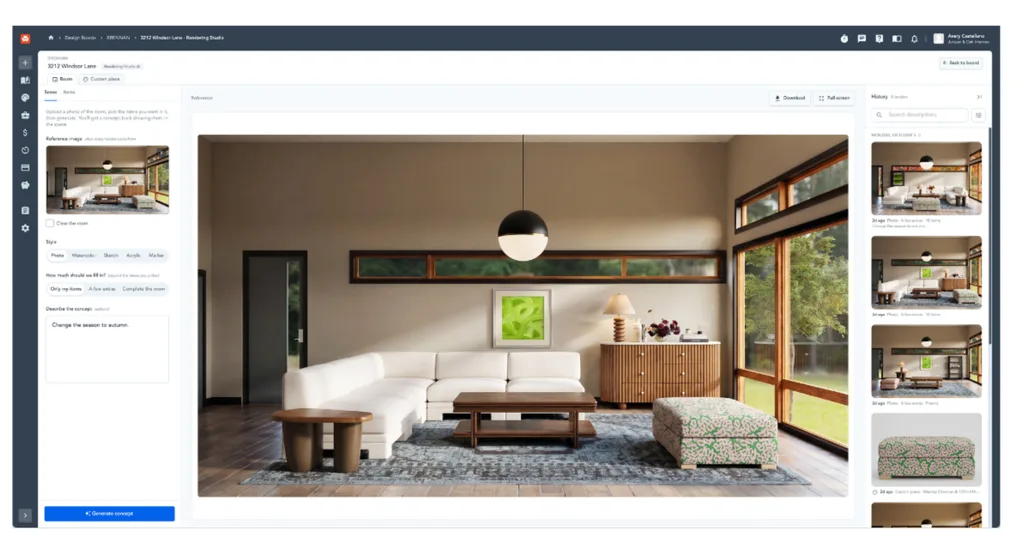
In Scene mode, Rendering Studio renders an entire room from a reference photo and a prompt. Scene mode is the starting point for most projects because it shows the client the full space with every selection in context.
- Upload a photo of the room. An empty room works best, since it gives the AI a clean starting point without existing furniture in the frame.
- Choose a rendering style, such as Photorealistic or Watercolor (more on styles below).
- Write a prompt describing the style, furniture, and layout, then layer in surfaces, lighting, and accessories. Products from the design board can be referenced by name.
- Generate the render. Rendering Studio produces the image in seconds, and the designer can adjust the prompt and generate again as many times as needed.
ALSO READ: The Free Prompt Guide
What is Custom Piece mode in Rendering Studio?
Custom Piece is a new Rendering Studio mode that applies a fabric, finish, or other change to a single item and renders it without changing the rest of the room. It gives designers precise control when refining one piece of furniture rather than regenerating the entire scene.
For example, a designer considering a bold green and pink print for a plain upholstered ottoman can select the ottoman, choose the fabric, and see how that combination looks before committing to the order. The sofa, rug, and lighting in the room stay exactly as they were.
Custom Piece is especially useful when a client loves a room but is undecided about one selection, such as a reupholstery fabric, a wood finish, or a custom color.
History tab: experiment without losing the version a client liked
In many rendering tools, generating a new image replaces the last one, so designers either save screenshots manually or avoid experimenting altogether. That becomes a problem when a client reviews three directions and decides the first one was right after all.
The History tab in Rendering Studio saves every render automatically, and any earlier version can be restored with one click to pick up where it left off. Designers can try a bold material or a completely different layout during a client meeting, knowing the option the client already approved is never more than a click away.
@ products: show clients what they will actually receive
When an AI rendering is built from a text description alone, it often shows a piece that looks right but does not exist. If a client falls in love with that sofa, the designer has to find a close match and explain why the delivered piece looks different from the image.
Typing @ in a Rendering Studio prompt pulls a specific product from Studio Designer’s catalog directly into the render, and the AI uses that product’s real dimensions, materials, and finishes. What the client approves in the image is the same item that gets specified, ordered, and installed, which means fewer surprises and fewer revisions once the project moves into procurement.
What rendering styles does Rendering Studio offer?
Rendering Studio offers five rendering styles, each suited to a different stage of a project or type of client conversation.
| Style | What it looks like | We recommend this style for |
|---|---|---|
| Photorealistic | True-to-life materials, natural light, and precise proportions | Final client sign-off, real estate listings, renovations |
| Photorealistic Moody | Photorealistic detail with dramatic lighting such as golden hour or candlelight | Luxury residential, hospitality, lifestyle-driven pitches |
| Acrylic | Rich, layered color with visible brushwork | Design-forward clients, concept presentations, portfolio imagery |
| Watercolor | Soft washes of color with a hand-drawn feel | Early concepts and clients still exploring options |
| Colored Pencil | Clean, hand-drawn illustration with clear scale | Architectural presentations and process-oriented clients |
Many designers start with Watercolor or Colored Pencil in early meetings, when a looser image invites conversation, and switch to Photorealistic once selections are final. For a deeper look at each option, see our guide to AI rendering styles.
ALSO READ: AI Rendering Styles: Which One Should You Use and When?
How is Rendering Studio different from other rendering tools?
Rendering Studio’s main difference is that every render is built from real, orderable products inside the same platform a firm uses to run its projects. Most standalone AI image tools generate furniture that looks convincing but does not exist, which leaves the designer to find close matches after the client falls in love with the image.
| Traditional 3D rendering | Standalone AI image tools | Rendering Studio | |
|---|---|---|---|
| Turnaround | Days, often outsourced | Seconds | Seconds |
| Products shown | Modeled by hand | Generated, often not real | Real items from Studio Designer’s catalog |
| Revisions | Added time and cost | Regenerate, but earlier versions may be lost | Every version saved in the History tab |
| Next step after approval | Source and spec separately | Source and spec separately | Approved items move into proposals and orders |
Studio Designer’s catalog includes more than 600,000 products from over 300 trade-focused brands. When a client approves a render, the products in it are already linked to pricing and availability and can move into a proposal and purchase order without switching tools.
How do I get started with Rendering Studio?
Studio Designer users can open Rendering Studio from any design board. Start with a photo of an empty room, add the products you are considering to the board, and generate a first render in Scene mode. From there, use Custom Piece to test individual fabrics and finishes, and return to the History tab whenever you want to revisit an earlier direction.
What does Rendering Studio mean for running a design firm?
Rendering Studio is one part of a bigger idea at Studio Designer: a design firm should be able to run its entire business from one studio. Most firms piece their work together across separate tools, with sourcing in one place, renderings in another, proposals in spreadsheets, and payments and accounting somewhere else. Every handoff between those tools means retyping item details, chasing the latest version, and leaving room for errors.
In Studio Designer, every step happens in the same place. A designer sources products in Catalog, arranges them on a Design Board, and shows the client a finished room in Rendering Studio. Once the client approves, those same items move into a proposal, a purchase order, and a client payment through StudioPay, with time tracking, payroll, and accounting connected in the background. The rendering a client falls in love with becomes the project the firm delivers and gets paid for, without anything being rebuilt along the way.
Frequently asked questions about Rendering Studio
Do I need 3D modeling experience to use Rendering Studio?
No. Rendering Studio works from a room photo and a written prompt, so designers do not need SketchUp, 3ds Max, or any other modeling software.
What is the difference between Scene mode and Custom Piece mode?
Scene mode renders the entire room. Custom Piece mode changes one item, such as a fabric or finish, and leaves everything else in the room unchanged.
Can I go back to an earlier version of a render?
Yes. The History tab saves every render automatically, and any saved version can be restored to continue working from that point.
Are the products in my render real?
Yes. Renders draw on products from your design board and Studio Designer’s catalog of 600,000+ trade products, and typing @ in a prompt brings a specific catalog product into the image.
How long does it take to generate a render?
Rendering Studio generates a render in seconds, compared with the days a traditional or outsourced rendering can take.
What kind of photo should I upload?
An empty room gives the best results because the AI has a clean starting point without existing furniture competing in the frame.
Studio Designer is the leading digital platform for interior designers managing and growing their design businesses, featuring fully integrated project management, time billing, product sourcing, and accounting solutions.
Want to learn how Studio Designer can work for your design firm? Schedule a call with our team: https://www.studiodesigner.com/get-a-demo/
We can’t wait to connect.